Inference settings and tuning
Two surfaces in MindSight touch how footage is processed, and telling them apart is the single most important thing to understand about the app's settings.
One rule: the dialog governs runs; the tuning tab is a sandbox
- The Inference Settings dialog is the authority for how runs launched from Analyze Footage are processed.
- The Inference Tuning tab is a decoupled playground -- nothing you change there affects a study run.
Why decoupled? The tuning tab exists to find good values by experimenting on a live preview. If tuning changes silently leaked into your runs, you could never experiment safely mid-study. So the two are separated by design, and the only bridge is a deliberate, one-way import: Import from Inference Tuning... in the dialog pulls your current tuning settings across when you decide an experiment is worth keeping.
The Inference Settings dialog
Open it from the button on every Analyze Footage mode, or Tools > Inference Settings.... It is the control panel for runs, organised into seven tabs:
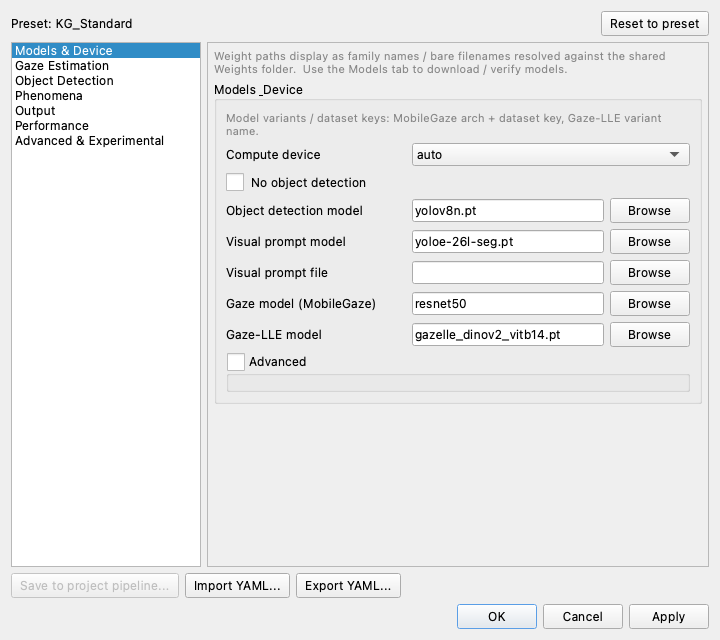
| Tab | What it covers |
|---|---|
| Models & Device | Which model weights to use and the compute device. |
| Gaze Estimation | Gaze rays, Gaze-LLE Blend, object lock-on, gaze tips, and gaze-object hits. |
| Object Detection | The detector, classes or visual prompt, confidence, and overlap merging. |
| Phenomena | Which social-attention phenomena are tracked. |
| Output | Annotated video, CSVs, summaries, heatmaps, and anonymization. |
| Performance | Speed-for-quality trade-offs. |
| Advanced & Experimental | The deep-tuning tier. |
Every field is documented in full on the Inference Settings reference -- the tabs above deep-link to it. A few behaviours worth knowing:
- Preset header. The header shows which preset the settings come from (fresh installs: KG_Standard, the shipped known-good preset) and whether you have (modified) it, with a Reset to preset button.
- Numbers are never clamped. A value you type can go beyond a slider's usual range -- it shows amber instead of being clamped, so intentional out-of-range tuning is possible but visibly flagged.
- Save to project pipeline... writes the current settings into the open project's preset so the whole study runs with them. Coordinate with your study lead before changing a running study's settings.
- Import YAML... / Export YAML... round-trip the full configuration as a
pipeline.yaml.
The Inference Tuning tab
The Inference Tuning tab is the interactive playground: load a clip, watch the gaze overlay live, and experiment to see each setting's effect immediately.
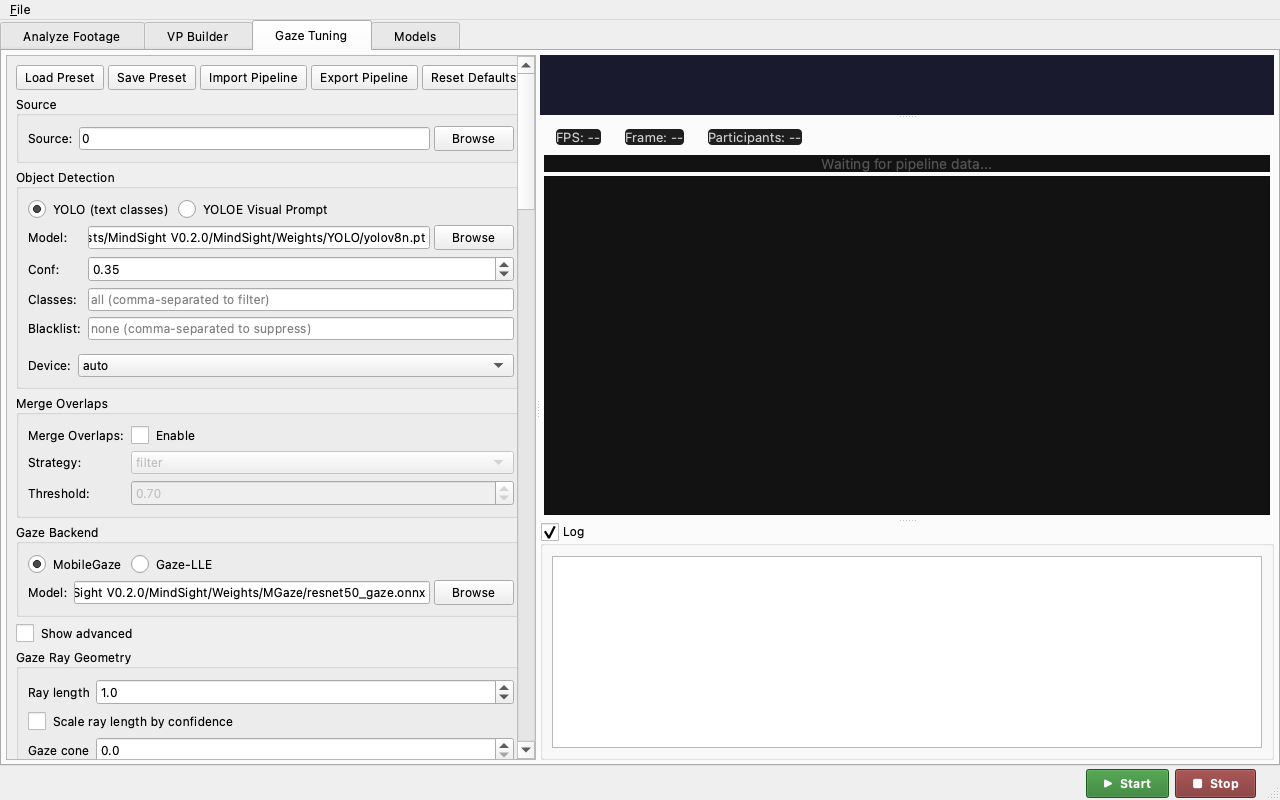
- Source -- a webcam, a video file, or an image.
- Detection -- YOLO (text classes) or YOLOE (visual prompt).
- Gaze backend -- MobileGaze (default) or Gaze-LLE.
- Live preview -- Start processing to see annotated frames as each setting changes; Stop to halt.
- Validation & Testing -- the bottom-right quadrant scores the tab's current settings against your own labeled frames, with run history and auto-tune sweeps. See Validation and testing.
- Plugin panel -- controls auto-generated from any installed plugins' arguments, so a plugin's tuning knobs appear here without extra wiring.
🎬 Demo coming soon -- SHOT:tuning-live
Inference Tuning: load a clip, Start, and watch the live gaze overlay and the dashboard update as a slider is dragged.
When an experiment is worth keeping, bring it across with Import from Inference Tuning... in the Inference Settings dialog.
Presets and persistence
Named presets live under ~/.mindsight/presets/ and are managed through
File > Load Preset... / Save Preset.... Your last-used settings are
restored automatically on the next launch. See
Where things live for the full picture of what MindSight
stores and where.
See also
- Inference Settings reference -- the field-by-field authority for the dialog.
- Validation and testing -- score tuning experiments against labeled ground truth instead of eyeballing them.
- Visual prompts -- the detection side of a run.
- Where things live -- presets and app state on disk.